Ableton Live users: get Chord Dock Performance free for 72 hours. Ends Aug 17, 13:00 UTC.
Chord Dock v2.0 lets you see the whole progression on a timeline, edit it visually, reharmonize it, generate Arpeggio / Bassline — and now perform four-part accompaniment (Drums / Bass / Arp / Chord Pad) with pads in Arranger Mode.
Four editions: Lite (free) / Extended / Performance / Full Bundle. All share the same installer — start with Lite for free, then unlock the direction you need with a license key.
Want everything unlocked from the start? Buy an Extended / Performance / Full Bundle license and enter the license key you receive after purchase.
Lite and Extended also include the Arranger Mode demo (90 seconds of playback, Pads 1–3 per part).
Video overview of Chord Dock 2.0 (English).
Use Lite to confirm the core workflow, DAW routing, and MIDI export flow first. Then unlock the direction you need: Extended goes deeper into harmony, Performance turns your progression into accompaniment you can play. Neither one is “above” the other — they unlock different directions.
Every Extended and Performance feature with a single license key.
On macOS, just launch the installer and start using Chord Dock.
For Windows, see the installation video for the setup steps.
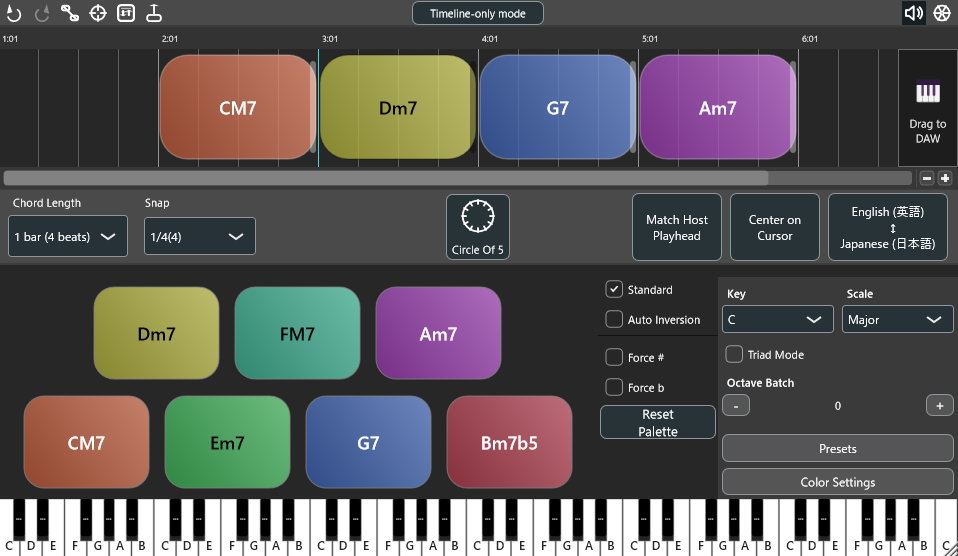
Edit, audition, and export from the same place — with Circle of Fifths and meter changes built in. Keep progression data portable across projects and DAWs.
Author editable pad patterns for Drums / Bass / Arp / Chord Pad. Presets and randomize commands create starting points; the saved patterns remain yours to edit.
Treat Verse/Chorus as blocks, move or duplicate them as units, and focus-edit only the target section when needed.
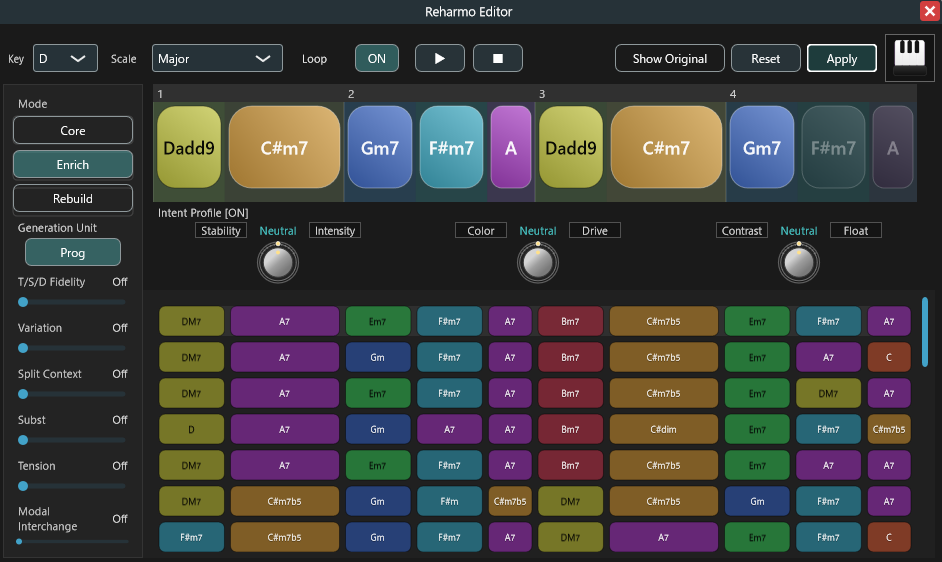
Compare candidates, preview safely, and apply only the changes you want at the right level of scope.
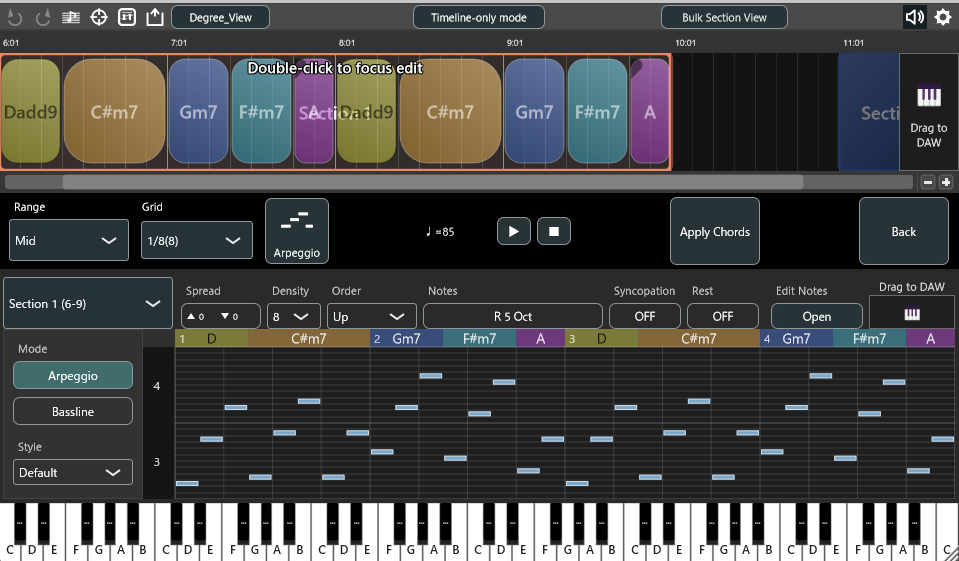
A local rule-based generator turns a selected chord section into notes using grid, density, range, note roles, order, rests, and anticipation controls.
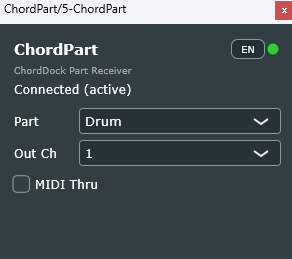
The bundled ChordPart plugin delivers each part's MIDI to its own DAW track — regardless of how your host routes plugin MIDI.
Drag/move/resize to build progressions intuitively. Snap to bars/beats, transpose and invert instantly. Shorten your loop: edit → audition → drag MIDI.
Compare candidates and preview changes without destroying the original progression, then apply only the version you want. Switch between Chord Unit and Progression Unit depending on scope.
Choose a section, set grid / density / range / note roles / order, then Chord Dock generates notes from the current chords locally. Preview the result, refine it in the note editor when needed, and drag the MIDI straight into your DAW.
Group Verse/Chorus into a colored clip. Move/duplicate as a unit (contents follow), and double‑click to focus‑edit only that section.
Double‑click a Section Clip to enter Focus Edit Mode. Everything outside the section is greyed out to prevent mistakes. Press Esc (or click Exit) to return.
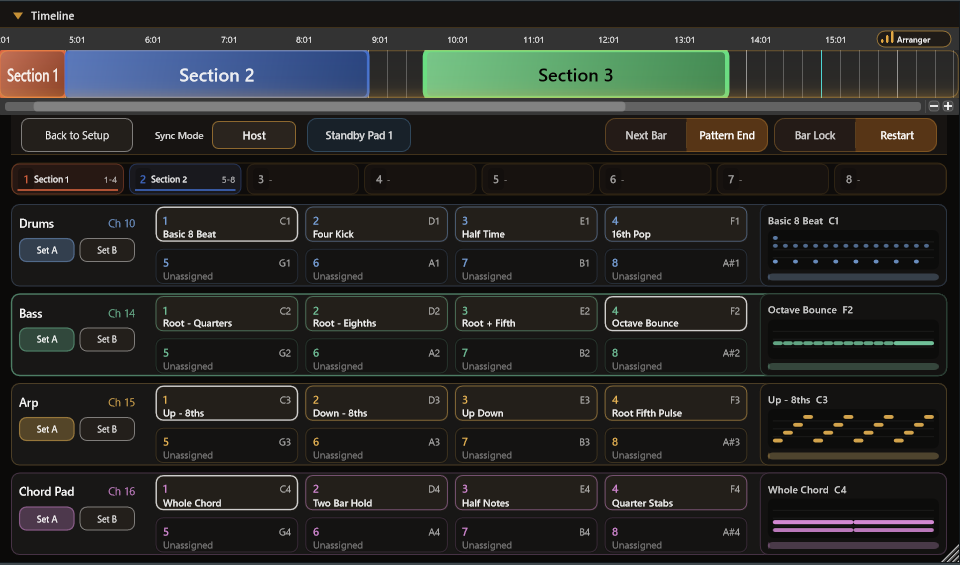
Build patterns for Drums / Bass / Arp / Chord Pad per section and trigger them with pads (8 pads × 2 pattern sets per part). Presets and randomize commands are only starting points. During preview, performance, or export, Bass / Arp / Chord Pad patterns are converted from timing and chord-role settings into MIDI notes for the selected section's chords.
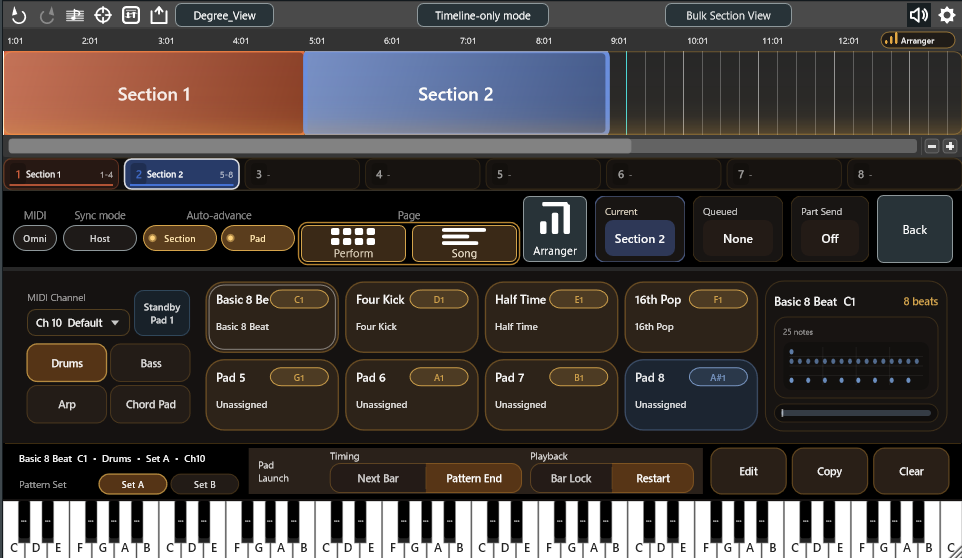
A dedicated performing view: 4 parts × 8 pads at a glance. Queue sections with clicks, number keys, or MIDI notes, and choose Sync Mode (Host / Plugin) to follow the DAW timeline or let Chord Dock lead.
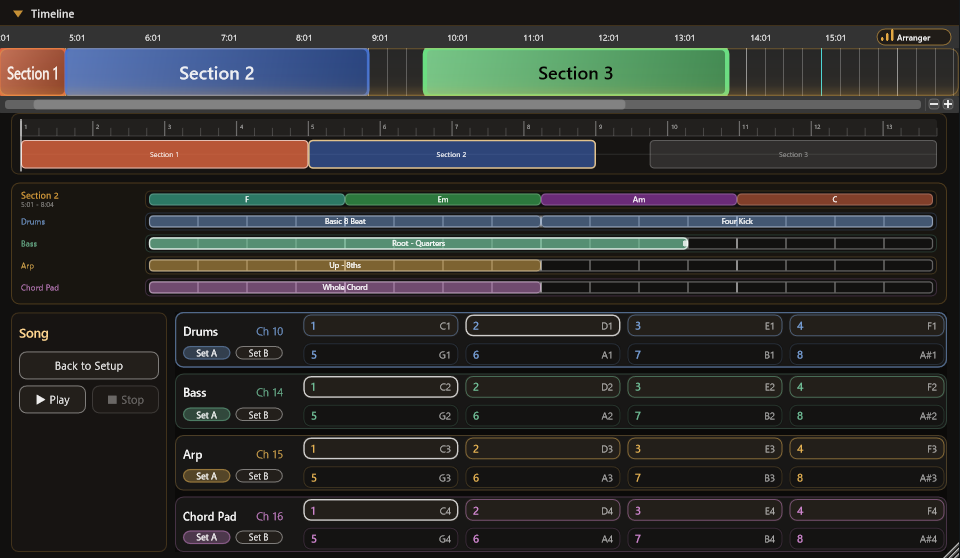
Arrange pad patterns along the song order and check the whole song — with internal playback while the DAW is stopped, or following host playback. Clip editing is fully undoable, and finished patterns export via MIDI drag.
Drop the bundled ChordPart plugin on a receiving track and it connects to the main plugin automatically — no wiring. Assign any instrument per part, regardless of how your host routes plugin MIDI. The Part Send chip on the main plugin shows the link status at a glance.

Chord Dock does not send your progression to a cloud AI system. Its pattern features are local and editable: Arpeggio / Bassline generates notes from a selected section, while Arranger Mode stores pad patterns and turns them into MIDI during preview, performance, or export.
Select a chord section, choose controls such as Range, Spread, Density, Grid, Notes, Tension, Order, Syncopation, Rest, and Style, then generate notes from that section's chords. Random order is deterministic: the same input produces the same result.
Arranger Mode is a pattern-authoring system, not AI generation, cloud generation, or purely random playback. Each pad stores an editable rhythmic and musical template. Presets and randomize commands only create starting points.
Drums use fixed drum lanes. Bass can use chord-relative roles or an absolute-pitch MIDI roll; Arp and Chord Pad use chord-tone role lanes. Role-based patterns keep their rhythm and musical shape while their pitches follow the selected section's chords.
In short: presets and randomize commands are available, but they are starting points. The result remains ordinary editable MIDI material.
The key differences between Lite / Extended / Performance / Full Bundle. For every feature in detail, see the full comparison table.
| Feature | Lite (Free) | Extended | Performance | Full Bundle |
|---|---|---|---|---|
| Timeline editing, Sections, MIDI drag export | ✔ | ✔ | ✔ | ✔ |
| Tensions / slash chords / Circle of Fifths | — | ✔ | — | ✔ |
| Reharmonization | — | ✔ | — | ✔ |
| Arpeggio / Bassline generation | — | ✔ | ✔ | ✔ |
| Arranger Mode (four-part accompaniment, pads) | Demo | Demo | ✔ | ✔ |
| Performance / Song pages | Demo | Demo | ✔ | ✔ |
| ChordPart (per-part MIDI output) | — | — | ✔ | ✔ |
| Arranger pattern MIDI export | — | — | ✔ | ✔ |
| Best suited for | Drafting, exporting, and sharing progressions | Deep harmony work, generation, and Reharmo | Live accompaniment, pads, per-part MIDI | Everything — Extended + Performance |
Demo = usable as the Arranger Mode demo (90 seconds of playback, Pads 1–3 per part, no Arranger MIDI export).
Chord Dock lets you create and edit chord progressions as a “blueprint” you can share across DAWs. Instead of auto-detecting chords, it focuses on fast editing and clear structure.
v2.0 launch: Limited-time pricing until October 1.
Core workflow
Timeline editing
Progression export / import
MIDI drag & drop
Arranger Mode demo
Go deeper into harmony
Tensions / slash chords / Circle of Fifths
Reharmonization
Arpeggio / Bassline generation
User preset bank & themes
Limited-time price · until October 1
Buy ExtendedPlay your progression
Arranger Mode (8 pads × 2 sets)
Performance / Song pages
ChordPart (per-part MIDI)
Arranger MIDI export
Limited-time price · until October 1
Buy PerformanceBoth directions
Every Extended and
Performance feature with
a single license key
Limited-time price · until October 1
Buy Full BundleFor Windows users
You can follow the setup steps in the Windows installation video.
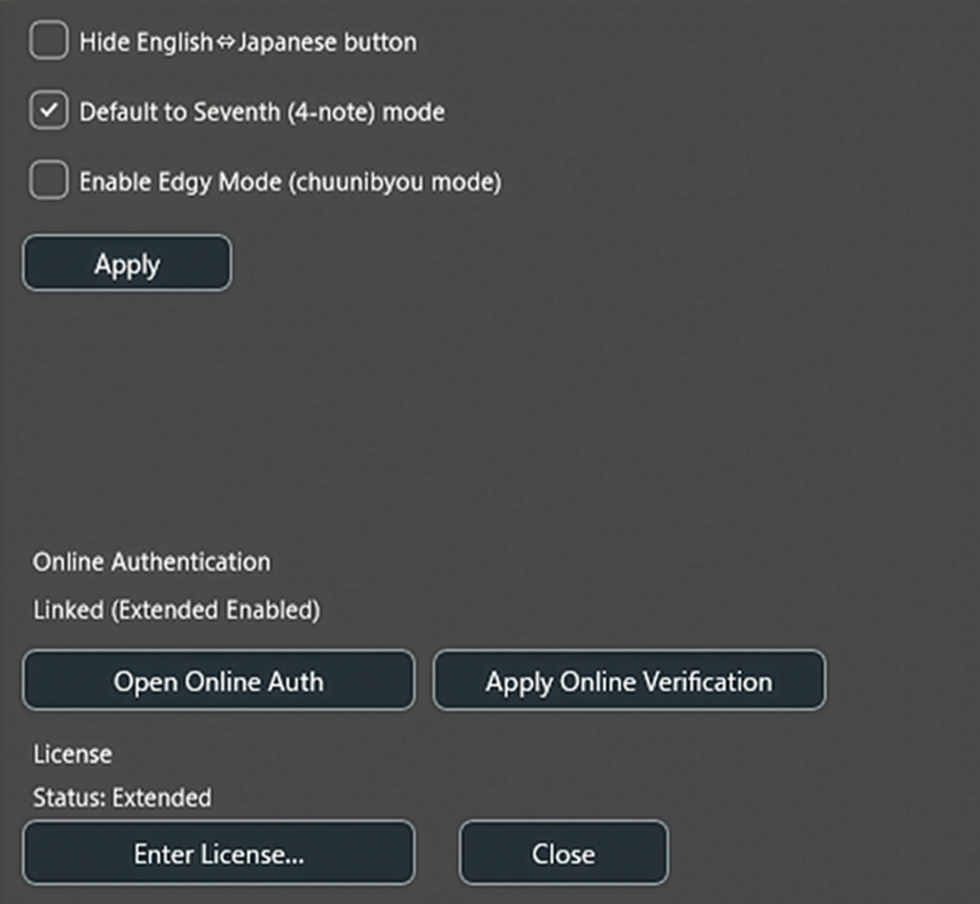
Chord Dock’s paid editions (Extended / Performance / Full Bundle) are activated with the license key issued after purchase.
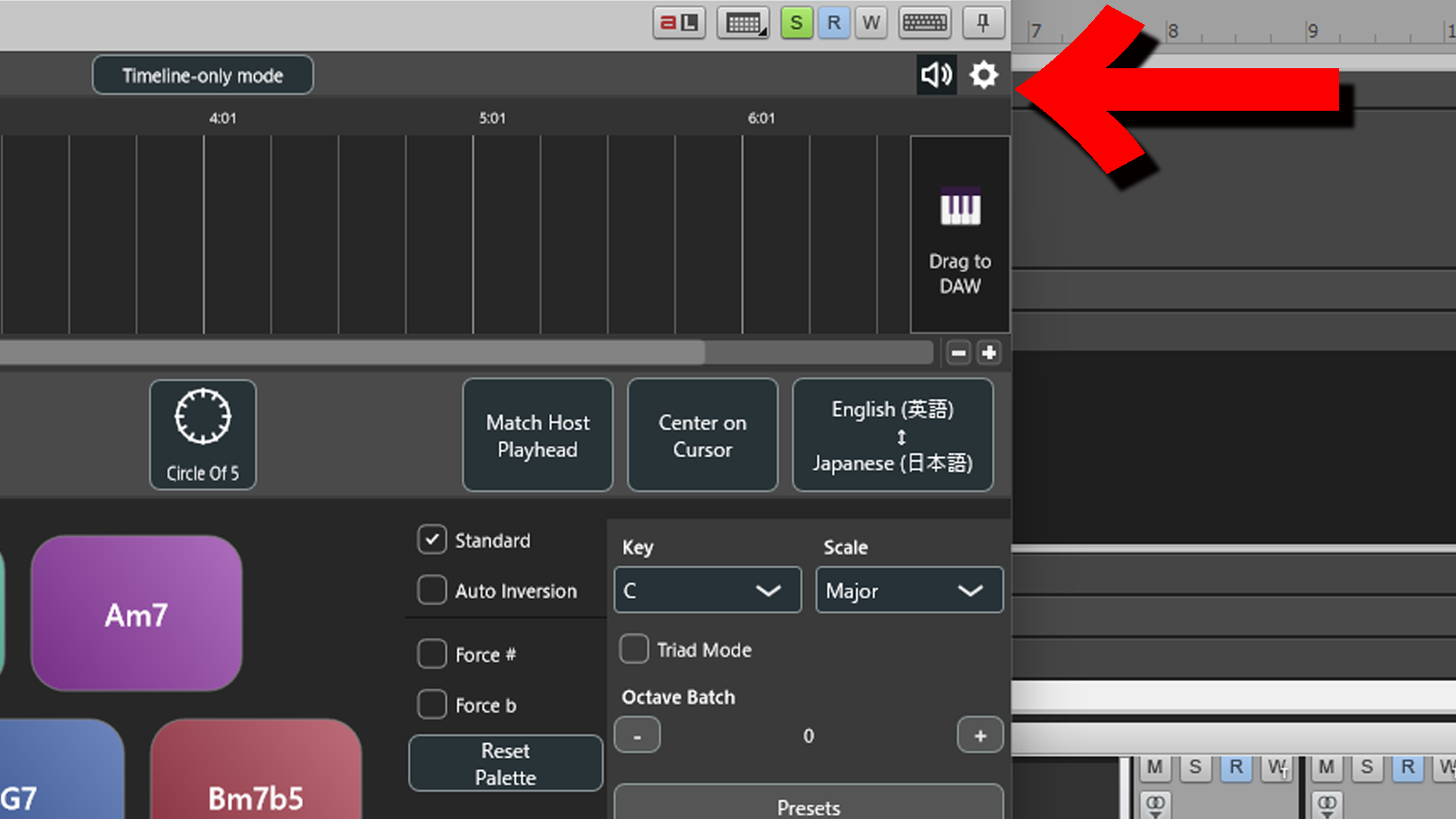
From the settings menu in the top-right of the plugin (gear icon), open “Enter License…”.
Entering your license key launches your browser, where you log in to your Chord Dock account and approve the device (online activation).
Your license is linked to your account and managed across devices. For details on device limits and exact steps, see the FAQ at the bottom of this page.
Click each question to show or hide the answer.
The headline addition is Arranger Mode (Performance edition): build four-part accompaniment — Drums / Bass / Arp / Chord Pad — on top of your progression and perform it with pads. v2.0 also adds the Performance page (32 pads at a glance), the Song page (lay patterns out in song order), and the bundled ChordPart plugin for per-part MIDI output. New Performance and Full Bundle editions join the lineup, and Lite / Extended include an Arranger Mode demo.
In Lite / Extended you can open the Setup / Performance / Song pages and try Arranger Mode with these limits:
Remaining demo time is not saved with the project — reopening the project resets it to 90 seconds. Performance / Full Bundle removes all limits.
A small bundled plugin (VST3) that delivers each Arranger part’s MIDI to its own DAW track. It connects to the main plugin automatically within the same project — no wiring.
The main plugin and ChordPart are not the same version, so the link is stopped for safety. Always update the main plugin and ChordPart together, as a matching-version set.
Sections used in Arranger Mode must start and end on a bar line (at least one bar). Adjust the section’s start and end to bar boundaries.
Yes. Insert ChordPart on each receiving track — each part can drive its own instrument, regardless of how your host routes plugin MIDI. See the Ableton Live guide for the steps.
Not in scope. Chord Dock focuses on portability of progressions, visualization, and editing speed. If you need automatic detection, please use dedicated tools alongside it.
Up to 2 devices per account can be activated at the same time. Deactivate any device to free a seat and activate another.
Check the following:
Follow these steps:
Chord Dock uses a shared installer for Lite and Extended. To use Extended, enter your license key again and perform online activation.
If serial information is lost when reinstalling the OS or moving to a new machine, the plugin may revert to Lite mode.
Open “Settings → Online activation” in Chord Dock and log in. There you can check:
This is usually faster than searching for the original purchase email, so please check here first.
Please check the following:
Open “Settings → Online activation” to see the list of devices. Deactivate unused devices to free up a slot for a new PC.
Please check the following:
Additionally:
You are probably in Focus Edit Mode. While focus mode is active, only the selected section can be edited and everything outside it is dimmed. Press Esc to return to normal editing.
No. If you do not enter a license key, Chord Dock runs as Lite automatically.
Please check the following in order:
After making these changes, restart your DAW and reopen the plugin. If it still shows Lite, please contact us via the support form.
In principle, updates are backward compatible. In rare cases, your DAW’s plugin cache may require a rescan.
No. User settings and presets are stored in your OS’s user data area and are kept when you update.
It works as follows:
However, an internet connection is required in these cases:
Bass, Arp, and Chord Pad patterns are created and edited by the user in Arranger Mode. They are not AI-generated and they are not purely random. The generated notes follow the chord progression according to each pattern's timing and chord-role settings.
Arranger Mode is a local pattern-authoring system. Each pad stores an editable rhythmic and musical template; presets and randomize commands only create starting points. Drums use independent rhythm patterns and are not generated from the chord progression.
Please use the contact form first because it keeps OS, DAW, version, and issue details in one structured place. If the Google form loops or will not submit, use the contact address listed in the Legal Notice and mention that the form failed.
Chord Dock is an independent project, so support is best effort. License / activation trouble, download problems, and reproducible bugs are prioritized. Feature requests, broad DAW setup consulting, and questions already covered in the FAQ, manual, or DAW guides may not receive an individual reply.
Host-specific setup guides are now available.
Start with Ableton Live if you want a chord-track-style workflow inside Live, or open the guide hub to see the latest host-specific pages.
Please check the FAQ, manual, and DAW guides first. For purchase-blocking questions, activation problems, download trouble, or reproducible bugs, use the structured support form.
Support is best effort. License / activation issues and reproducible bugs are prioritized; feature requests and environment-specific setup consulting may be collected without an individual reply. If the form fails, use the contact address in the Legal Notice and mention that the form failed.